Display testing
Test OLED Black Uniformity & IPS Bleed with a Local MP4
Use a verified zero-audio RGB(0,0,0) MP4 instead of streaming video to check OLED stuck pixels, IPS corner glow and bezel backlight bleed.
By Black Screen Video · · 6 min read
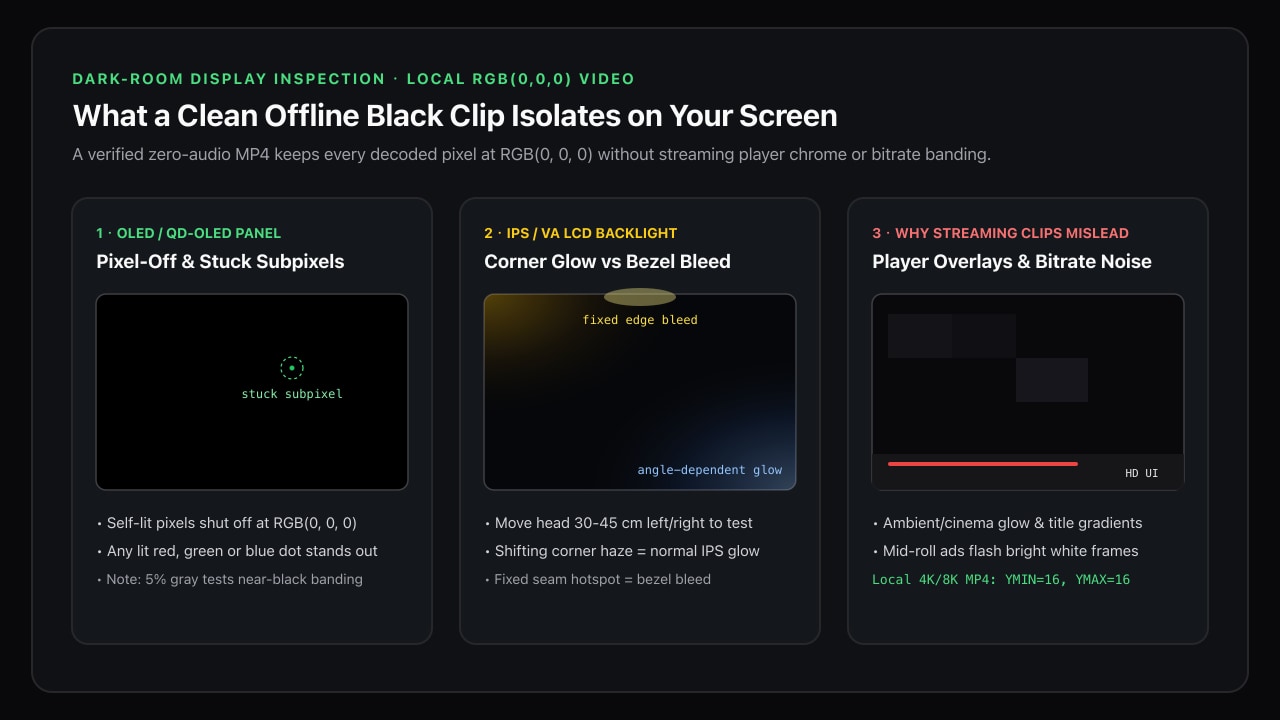
Typing "black screen test" into a video streaming app is convenient, but streaming playback introduces variables that look remarkably similar to panel defects: adaptive-bitrate macroblocking, "ambient mode" player glow, title gradients that reappear when a mouse moves, and loud mid-roll ads that flash bright white in a dark room.
Playing a tiny, verified, zero-audio local MP4 removes the network and browser UI from the equation so you are inspecting your display hardware — not a re-encoded stream.
1. Why streaming black videos fail dark-room panel checks
Before judging an expensive monitor, TV or laptop return window, eliminate four artifacts common to streamed "10-hour black screen" uploads:
- Ambient / Cinema glow overlays: Several web players sample frame edges or add subtle UI drop-shadows around the viewport unless ambient lighting is explicitly disabled.
- Adaptive bitrate switching: Over Wi-Fi or cellular data, players step down resolution or switch codecs mid-playback, which can briefly shift color range or introduce faint compression blocks if the uploader's source was noisy.
- OSD chrome & autoplay cards: End-screen thumbnails, channel watermarks, and pause overlays emit bright light that ruins dark adaptation.
- Unexpected audio or ads: Even "silent" uploads can trigger platform ads at full volume.
By contrast, our offline downloads contain zero audio streams (audioStreams: 0) and every H.264 sample measures YMIN = 16, YMAX = 16, U = 128, V = 128 across all frames — decoding to exact RGB(0, 0, 0) (#000000).
2. Pick the file that matches your native panel resolution
Using a clip that matches your screen's native resolution avoids upscaler edge ringing, though solid RGB(0, 0, 0) decodes identically across sizes. Here are the measured properties from our FFmpeg 8.1 benchmark (technical-benchmarks.json):
| Download page | Filename | Resolution | Duration | Measured size | Decoded RGB |
|---|---|---|---|---|---|
| 4K black screen | black-4k-10s.mp4 | 3840 × 2160 | 10 s (loopable) | 251,319 B (~245 KB) | rgb(0, 0, 0) |
| 8K black screen | black-8k-10s.mp4 | 7680 × 4320 | 10 s (loopable) | 980,940 B (~958 KB) | rgb(0, 0, 0) |
| 1-hour black screen | black-720p-1hour.mp4 | 1280 × 720 | 3,600 s (1 hr) | 485,718 B (~474 KB) | rgb(0, 0, 0) |
Note one subtle finding from our measurements: H.264 MP4/MOV samples held exact YMIN=16, YMAX=16, whereas the VP9 WebM sample (black-720p-10s.webm) measured YMIN=15, YMAX=17 (YAVG=16.0001). For display testing, choose the H.264 MP4 so every macroblock sits at a uniform Y=16 -> RGB(0, 0, 0).
You can verify any downloaded test file yourself before running a panel check:
ffmpeg -hide_banner -i black-4k-10s.mp4 -frames:v 5 \
  -vf "signalstats,metadata=print:file=-" -an -f null -
3. Step-by-step dark-room inspection protocol
- Prepare the room and panel: Wait until night or darken the room completely. Let the display warm up for 15–20 minutes at your normal everyday brightness (for example
100–120 cd/m², not100%max backlight, which exaggerates glow beyond real usage). - Disable dynamic contrast & OS overlays: Temporarily turn off local dimming (if testing raw LCD uniformity), auto-brightness, screen savers, and taskbar auto-show. Ensure your GPU output is set to matching RGB Full (
0–255) or matched YCbCr Limited — see our 0–255 vs 16–235 gray-black guide if the whole screen looks washed gray. - Loop cleanly with zero UI: Open the MP4 in a local player with OSD hidden and infinite loop enabled (for example
mpv --fs --loop-file=inf --osc=no black-4k-10s.mp4, VLCCmd+L/Ctrl+Lwith minimal interface, or QuickTimeOption+Cmd+L).
What to look for on OLED, QD-OLED & Mini-LED
- True pixel shutoff: On an OLED panel receiving
RGB(0, 0, 0)in SDR, healthy pixels emit zero light; in a pitch-black room you should not be able to tell where the bezel ends and the panel begins. (Note: QD-OLED panels without a polarizer can look slightly purple-gray only when ambient room light hits the glass — turn off room lights to distinguish ambient reflection from raised black levels.) - Stuck bright subpixels: Scan slowly in a grid from
40–60 cmaway. A stuck red, green, blue, or white subpixel shines sharply againstRGB(0, 0, 0). Dead pixels (permanently dark) require a separate white/red/green/blue test slide, since they blend into a black screen. - Important OLED caveat (near-black
5%gray): Because OLED pixels turn completely off at0%black (RGB 0,0,0), pure black will not reveal vertical dark-gray banding ("dirty screen effect"). After checking0%black shutoff and stuck pixels, check a5%dark-gray slide (#0D0D0D–#141414) if you want to evaluate near-black uniformity.
How to tell normal IPS glow apart from backlight bleed
On IPS and VA LCD monitors, a constant LED backlight sits behind liquid-crystal shutters, so some faint light always passes through in a dark room. Sitting centered at arm's length (60–80 cm), move your head 30–45 cm left, right, up, and down:
- IPS corner glow (optical characteristic): Pale silver, amber, or bluish haze in the corners that shifts intensity or disappears as your viewing angle moves directly in front of that corner. Almost all IPS panels show some off-axis glow.
- Backlight bleed (assembly defect): Bright, localized hotspots or streaks along the bezel edges that stay pinned to the exact same physical spot regardless of where you move your head, caused by uneven frame pinch on the diffuser layers.
Avoid judging IPS bleed from smartphone photos: phone night-mode cameras boost exposure by several stops and make normal 0.1 cd/m² black levels look blazing white.
Test notes and references
File sizes, SHA-256 checksums, frame counts and signalstats luma bounds (YMIN=16, YMAX=16) were measured with FFmpeg/ffprobe 8.1 on November 14, 2026 and published in technical-benchmarks.json. A pure black video verifies zero-signal shutoff, stuck bright subpixels and LCD backlight leakage; it is not a substitute for a hardware colorimeter or full multi-point grayscale calibration.
For display-measurement methodology, see the ICDM Information Display Measurements Standard (IDMS) and FFmpeg signalstats documentation.