File formats
MP4, WebM or MOV? Compare the actual black-screen files
Measured sizes, codecs, frame rates and audio tracks from our 720p ten-second downloads, with practical format choices and conversion commands.
By Black Screen Video · · 5 min read
Start with MP4 if you do not have a format requirement. Choose WebM when your delivery environment supports VP9 and you have checked the size of your chosen file. Choose MOV when your editing workflow specifically asks for that container. A .mov extension alone does not tell you that the video is ProRes or has transparency.
We downloaded the same 720p, ten-second black clip in all three formats and measured the files, rather than comparing unrelated videos. This guide explains what those results mean for a real download.
The measured samples
| File | Video codec | Bytes | Audio tracks |
|---|---|---|---|
| black-720p-10s.mp4 | H.264 | 4,972 | 0 |
| black-720p-10s.webm | VP9 | 3,440 | 0 |
| black-720p-10s.mov | H.264 | 4,919 | 0 |
All three files were 1,280 × 720, 10.000 seconds, 5 fps, 50 decoded frames and yuv420p. All had zero audio streams and decoded fully without errors in FFmpeg 8.1. The MP4 and MOV samples used H.264 Constrained Baseline; the WebM used VP9 Profile 0.
The complete measurement report includes byte counts, source URLs, SHA-256 hashes, and conversion results. These observations apply to these particular files. A different resolution or duration can have a different size relationship.
For this sample, WebM was about 31% smaller than MP4: a saving of 1,532 bytes. That is a small absolute difference. File size alone is a poor reason to choose a format your target player cannot open.
Container and codec answer different questions
MP4, WebM and MOV are containers: they hold video streams and related metadata. H.264 and VP9 are codecs: they describe how those video frames are encoded. A player needs support for both the container and the codec, along with the actual resolution and encoding profile. MDN's container guide explains this distinction and browser support.
Our MOV sample contains H.264, just like the MP4 sample. It does not contain a ProRes stream, and yuv420p has no alpha channel. Downloading MOV will not turn black pixels into transparency. If you need a transparent overlay, this opaque black background is the wrong asset.
Choose for the destination
| Destination | Starting choice | Check before committing |
|---|---|---|
| A normal video file to share or import | MP4 with H.264 | Open it in the actual destination app; check dimensions and duration. |
| A web page where you control playback | MP4, or WebM with an MP4 fallback | Test the actual browsers you support, not just the extension. |
| An editing workflow requesting QuickTime/MOV | MOV | Confirm that H.264 inside MOV meets the requirement; this file is not ProRes. |
| An older or constrained hardware player | A modest-resolution MP4 | Check the device manual and run a short sample before using a long file. |
These are format-selection steps, not a tested compatibility matrix. Our measurements establish the files' properties and successful FFmpeg decoding; they do not certify playback on every television, phone or editor.
Download the format you intend to use
Open the black MP4 tool page or ten-second clip. Select 720p, then use More options to select 10s and a format. The main download button should show the complete selection before you press it.
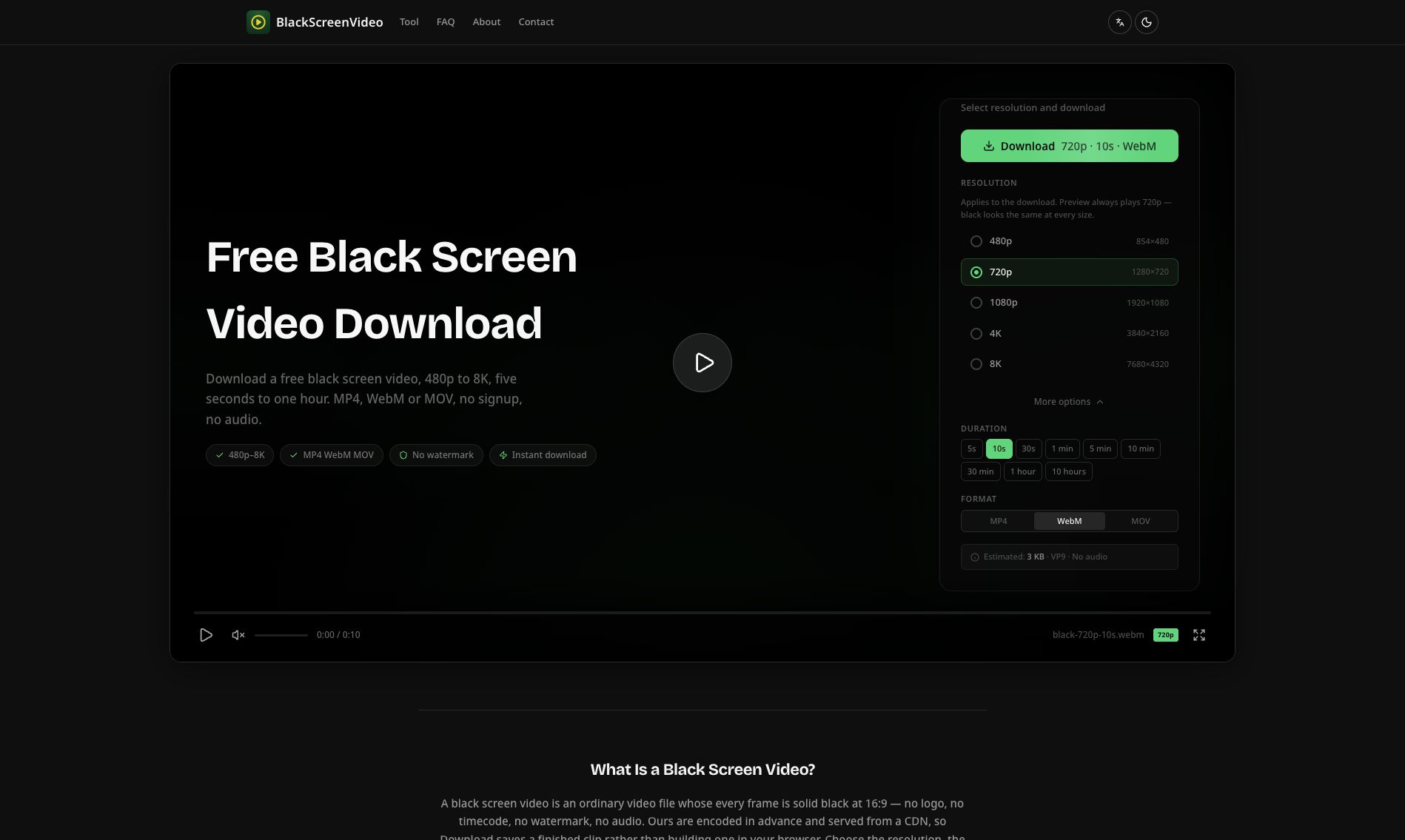
Do not rename a .webm file to .mp4 to convert it. The bytes inside would still be WebM. You can inspect the real contents with:
ffprobe -v error -show_streams -show_format \
  -of json black-720p-10s.webm
Look for codec_name, width, height, avg_frame_rate and duration. No stream with codec_type: audio means there is no audio track; turning a player's volume up will not add sound.
Convert only when the destination requires it
For our H.264 MOV sample, changing the container to MP4 can use stream copy. It avoids re-encoding the video:
ffmpeg -i black-720p-10s.mov -map 0:v:0 -an \
  -c:v copy -movflags +faststart remuxed.mp4
Our run produced a ten-second, 5 fps H.264 MP4 with 50 frames and 4,972 bytes. That result is specific to this source; stream copy is not a general way to turn every MOV codec into H.264.
If you already have the WebM and need a 30 fps H.264 MP4, encode a new copy:
ffmpeg -i black-720p-10s.webm -map 0:v:0 -an \
  -vf fps=30 -c:v libx264 -crf 18 -pix_fmt yuv420p \
  -movflags +faststart converted.mp4
Our output measured 10.000 seconds, 300 frames and 17,540 bytes. It was larger than the original MP4 because this command encodes a different 30 fps stream. If the original MP4 already works for your destination, downloading it directly avoids this extra conversion.
Both commands intentionally exclude audio. They match these silent black samples and should not be copied unchanged into a workflow that needs to preserve a soundtrack.
Check one short file before a bigger workflow
Download a ten-second sample, open it in the target app, confirm that it lasts ten seconds, then export or embed it the way you plan to use it. Check the resulting file too. If the timeline changes the duration, see the precise black-gap workflow for the difference between converting frame rate and reinterpreting frames.
Measurements and both conversion recipes were executed with FFmpeg/ffprobe 8.1 on November 2, 2026. The downloadable report makes the sample set reproducible. For the command options, see the official FFmpeg documentation.